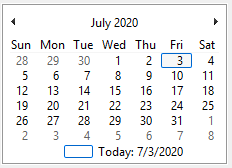
The Calendar

Main Characteristics of Calendars
Calendar Attributes

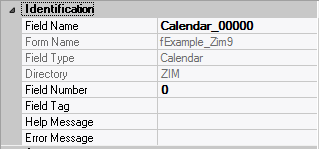
– Identification
Attribute NameDefault ValueDescription
Field TypeThe type of this form field or of this user interface object. (Read-only).
Field NamevariableA string that identifies this form field within the Zim application;
Automatically assigned by the Zim IDE when a new form field is created;
May be changed by the developer, but must always conform to the Zim Object Naming Rules and satisfy the Zim Object Uniqueness Conditions.
Field Number0A number that may be used to identify this form field within the Zim application and in Callback Events;
May be changed by the developer and need not be unique;
Value must be an integer between 0 and 999;
Field Tag“”A string that may be used to identify this form field within the Zim application and in Callback Events;
May be changed by the developer and need not be unique;
If left blank, the Zim IDE will assign the value of Field Name to Field Tag.
DirectoryZIMThe directory that owns the parent form of this form field (Read-only).
Form NameA string that identifies the parent form of this form field (Read-only).
Help Message“”A help message that will be displayed when this form field or this menu item receives input focus;
Displayed in the status bar of the window associated with the parent form of this form field (if the window object’s Status Bar attribute is set to True);
Displayed in a message field if one such field exists in the parent form of this form field.


– Appearance

Attribute NameDefault ValueDescription
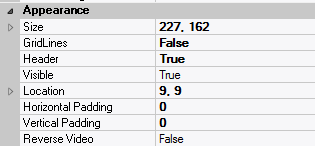
Customized PointerdefaultThe pointer (or cursor) style when the pointer is hovering over (or the cursor is inside) an available form field;
May be selected from the following choices in the list box:
Arrow →  the standard arrow cursor;
Cross-hair →  ;
I-Beam →  ;
Icon →  ;
Resize →  ;
Size NE SW →  ;
Size NS →  ;
Size NW SE →  ;
Size WE →  ;
Up Arrow →  ;
Hourglass →  ;
default →  The pointer style will be I-Beam for Entry Field and Arrow for all other form fields.
LocationThe location (in pixels) of this form field in relation to the top-left corner of its parent form or parent container.
XThe horizontal location of this form field.
YThe vertical location of this form field.
Reverse VideoFalseTrue →  The text will appear in white on a black background;
False →  The text will appear in black on a white background;
SizeThe size of this form field in pixels.
WidthThe width of this form field.
HeightThe height of this form field.
VisibleTrueTrue →  This form field will be visible by default.


– Behavior

Attribute NameDefault ValueDescription
AnchoringTop, LeftWhen the window associated with this form field’s parent form is resized:
Top →  The top edge of this form field will maintain its distance from the top edge of the window;
Bottom →  The bottom edge of this form field will maintain its distance from the bottom edge of the window;
Left →  The left edge of this form field will maintain its distance from the left edge of the window;
Right →  The right edge of this form field will maintain its distance from the right edge of the window;
None →  The same as TopLeft.
Auto SkipFalseTrue →  The input focus will automatically skip to the next available form field after the value or state of this form field has been modified.
DockingNoneTop →  The top edge of the form field will be expanded and placed;
Bottom →  ;
Left →  ;
Right →  ;
Fill →  ;
None →  This form field.


– Callback Events

Attribute NameDefault ValueDescription
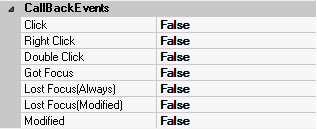
All Callback EventsWhen any of the following callback event attributes is set to True, this form field will be able to trigger the corresponding callback event;
After the event is triggered, the form input command will be terminated and the following values will populate the Event Vector:
Event.EventType = “FormField”;
Event.EventTag = the form field’s Field Tag attribute;
Additional values relative to specific callback events (see below);
Note:
Callback events can only be triggered by a form field if it is available and contained in a form that has input focus.
ClickFalseTriggered when the left mouse button is clicked within this form field;
Event.EventName = “Click” added to the Event Vector.
Double ClickFalseTriggered when the left mouse button is double-clicked within this form field;
Event.EventName = “DoubleClick” added to the Event Vector.
Got FocusFalseTriggered when a mouse click, a tab key press or an accelerator key press causes this form field to acquire the input focus;
Event.EventName = “GotFocus” added to the Event Vector.
Lost Focus
(Always)
FalseTriggered when a mouse click, a tab key press or an accelerator key press causes this form field to lose the input focus;
Event.EventName = “LostFocus” added to the Event Vector.
Lost Focus
(When Modified)
FalseTriggered when a mouse click, a tab key press or an accelerator key press causes this form field to lose the input focus after its value has been modified (cf. Modified below);
Event.EventName = “LostFocusModified” added to the Event Vector.
ModifiedFalseTriggered when the value or state of this form field is modified by a left mouse button click;
Event.EventName = “Modified” added to Event Vector.
Right ClickFalseTriggered when the right mouse button is clicked on or inside this form field;
Event.EventName = “RightClick” added to the Event Vector.


– Properties

Attribute NameDefault ValueDescription
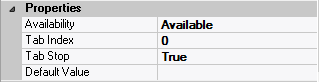
AvailabilityAvailableThe way in which the end-user will interact with this form field:
Available →  This form field can receive input focus and its contents can be modified;
Unavailable →  This form field cannot receive input focus and its contents cannot be modified;
Guarded →  This form field can receive input focus but its contents cannot be modified;
Protected →  This form field cannot receive input focus, its contents cannot be modified and it will appear grayed-out;
Tab Index0The relative position of this form field in the tab sequence order for its parent container or form field;
0 →  The relative position of the form field in the structure chart will be used instead.
Tab StopTrueTrue →  This form field will be included in the tab order for its parent container or form;
False →  
Z-Order>= 10001The relative depth of this form field in relation to other form fields within the same parent container or form.

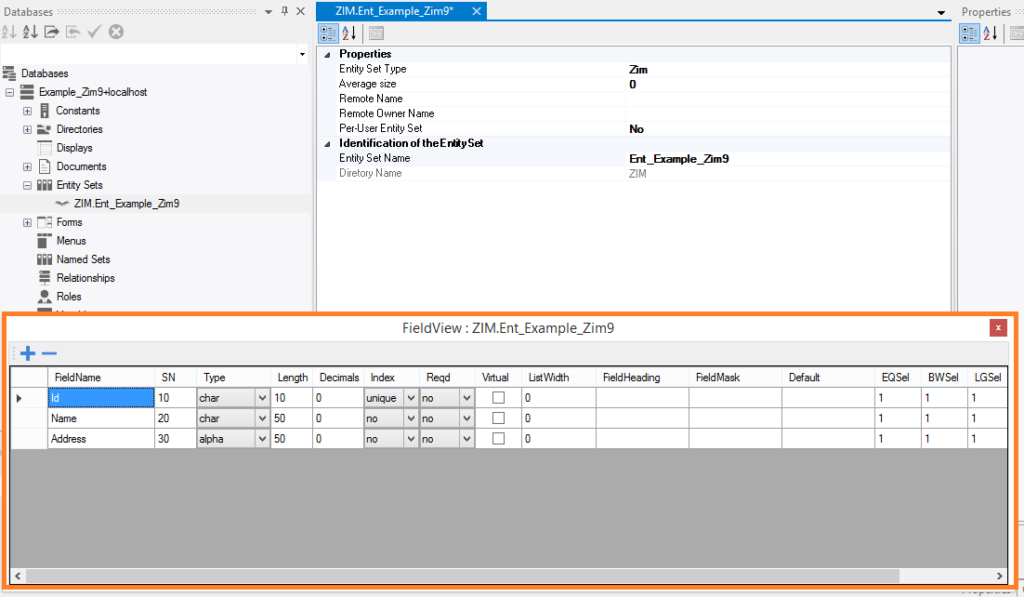
The Field View

Main Characteristics of the Field View

The Field View is automatically enabled objects which can contain custom fields are opened or  added:

Entity Sets;

Relationships;

Documents.

The Field View can be made visible or invisible through the View menu item in the Main Menu.


The Graphical Object Tab Page

Main Characteristics of the Graphical Objects Tab Page

The Graphical Object Tab Page shows the hierarchy of the objects currently open in the GUI Designer.

In the Tree View, primary user interface objects, such as formsdisplays and menus, appear as top nodes.

Forms are the only children of displays

All other objects


The Database Tab Page

Main Characteristics of the Database Tab Page


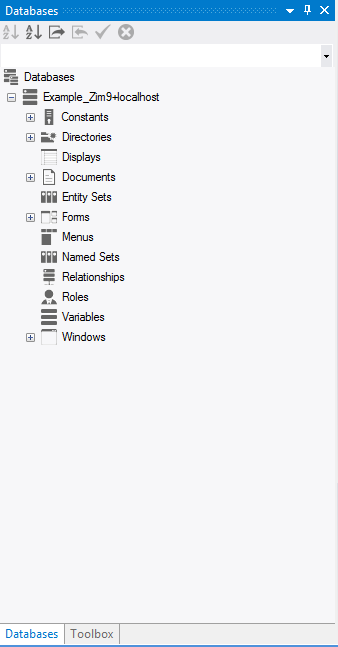
The Database Tab Page displays all databases currently connected to the current session of Zim IDE.

Each connected database is represented as an expandable node containing all possible database object categories.

Each object category is also represented as an expandable node containing all objects of that category in the database.

To edit an object, right-click on its name to open it in the GUI Designer workspace;

To create an object, right-click on the category of the object you wish to create and enter the required information in the New Object Dialog;


Zim IDE Components

The Organization of Zim IDE

Zim IDE consists of eight separate visual components distributed within five different panels. Some panels are occupied by two different visual components, of which only one is displayed individually when selected by the designer.

The visual components of Zim IDE and their respective display panels are introduced below:


ComponentDisplay Area
Menu Area
Left Panel
Left Panel
Central Panel
Central Panel
Right Panel
Right Panel
Field View Panel


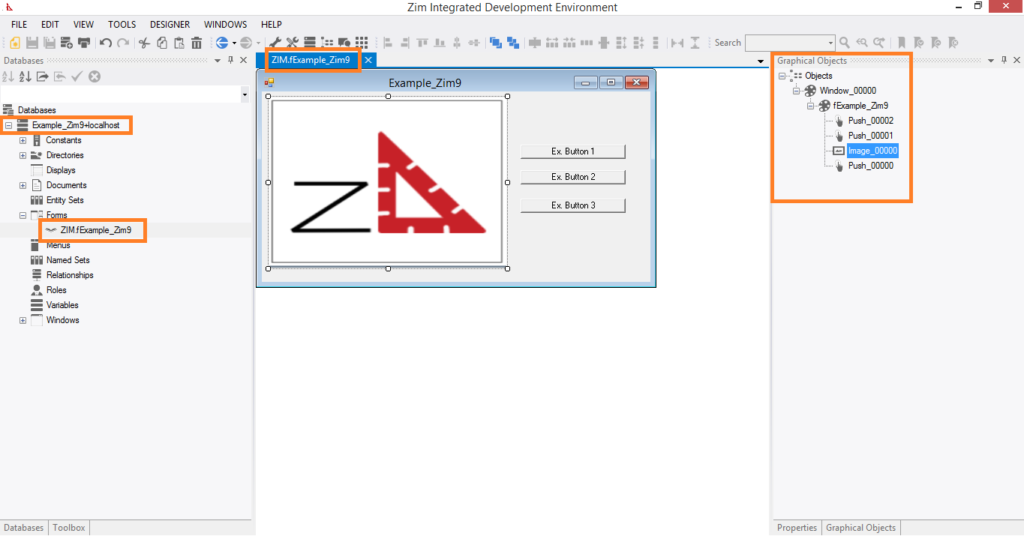
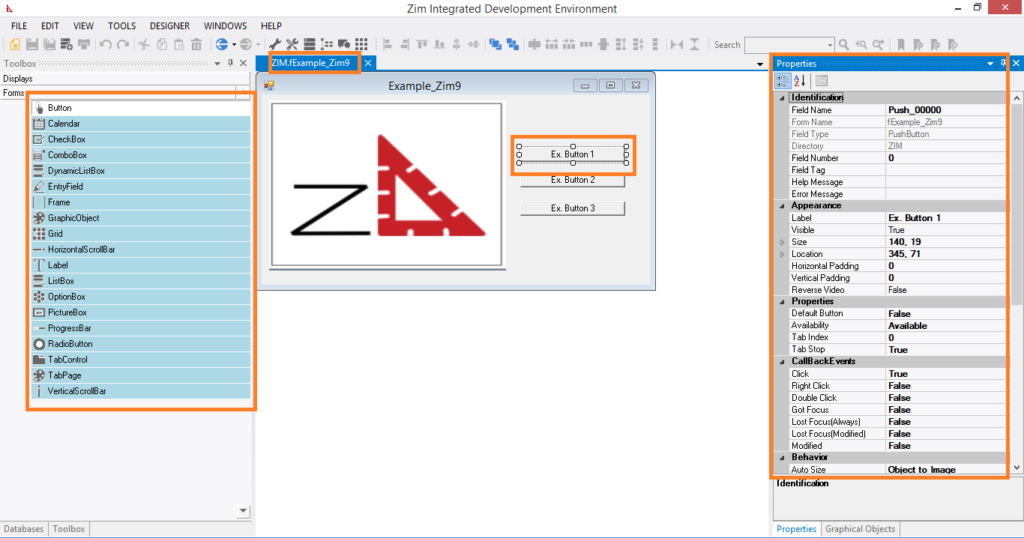
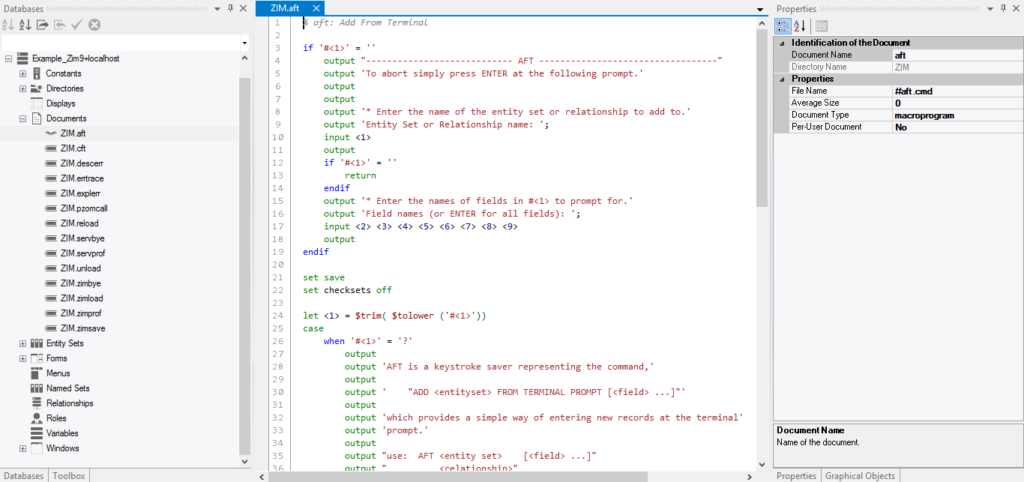
The following images show how the different areas of the Zim IDE fit together during the user interface design process:

Example 1: Connected databases and the structure of objects

In this image, the form fExample_Zim9 is being edited in the GUI Designer workspace, while the database Example_Zim9 + localhost are connected to this Zim IDE session as shown in the database tab page. the form opened in the GUI designer (fExample_Zim9) are shown in the Tree View Tab Page on the right, along with their respective fields.


Example 2: Form field attributes and objects available in the Tool Box tab page

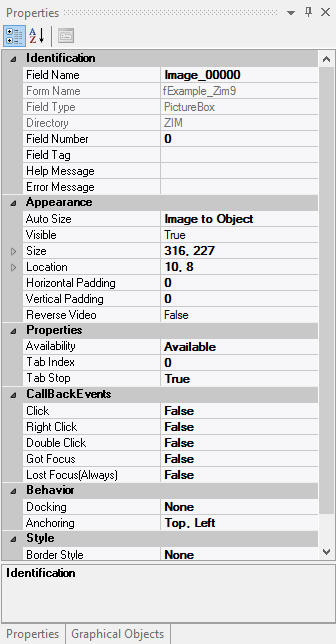
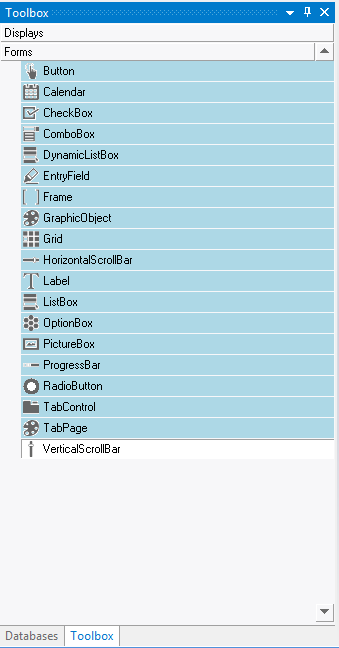
In this image, the form fExample_Zim9 is being edited in the GUI Designer workspace. A Push Button is currently selected and its attributes are shown in the Attributes Tab Page. The Tool Box Tab Page is also visible, showing the available user interface objects that can be added to the form.


The Document Editor

Main Characteristics of the Document Editor

The Document Editor is where documents such as Zim programs, database parameters and configuration files are viewed and edited.

It occupies the same area as the GUI Designer

it offers syntax highlighting customized for the Zim programming language.

Documents can be opened and edited directly from the Database Tab Page:

Click on the Documents node under one of the connected databases and select the document you wish to open and edit.


The Menu Tool Bar

Main Characteristics of the Menu Tool Bar

The Toolbar contains shortcuts to menu items that are frequently used.  There are icons for the following menu items:

The Menu Tool bar is divided into the following menu areas:

The Main Menu

Contains file operations: NewOpenSaveSave As and Close.
Contains edit operations: CutCopyPaste.
Enable or Disable the Field View.
Enables the Preference Menu and the Test View.
Shows the Windows Menu.
Connects to the Online Help Library.

File

Edit

View

Tools

Windows

Help

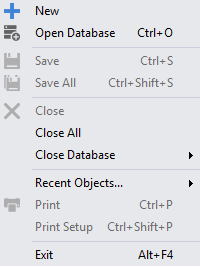
The File Menu

Create a new object.
Save the current object.
Save all recently modified objects currently open.
Connect to another instance of a Zim database. Multiple simultaneous connections are supported.
Print the window, form or display currently open in the GUI Designer.

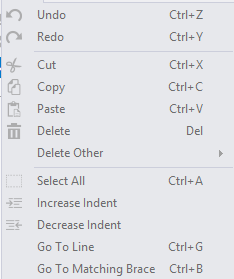
The Edit Menu

Undo the last action.
Redo the last undone action.
Cut the current selected object from the GUI Designer and place it on the clipboard.
Copy the current selected object from the GUI Designer and place it on the clipboard.
Paste the contents of the clipboard into the GUI Designer workspace.
Delete the selected object from the GUI Designer workspace.

The View Menu

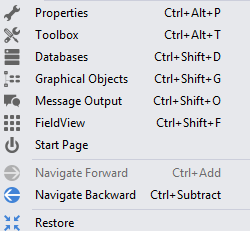
Display the Properties Tab Page
Display the Tool Box Tab Page
Display the existing objects in all currently connected databases in the Database Tab Page
Display the Graphical Objects Tab Page
Display the Message Output Tab Page
Display the FieldView Tab Page
Display Start Page Tab Page

Tools

Display Internet Tab Page
Display Query Database Tab Page
Display Preferences Tab Page
Display Test Mode Tab Page

Windows

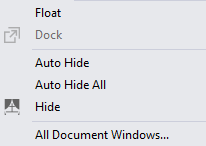
Float Tab Page
Dock Tab Page
Tab Page Auto Hide
Tab Page Auto Hide All
Tab Page Hide
Tab Page All Document Windows

Help

Zim Databases Canada website Tab Page
Zim Developer Library
Check for Update Zim
About Zim Development Environment

The Alignment Menu

Left align all currently selected objects with the first object that was selected.
Right align all currently selected objects with the first object that was selected.
Top align all currently selected objects with the first object that was selected.
Bottom align all currently selected objects with the first object that was selected.
Vertically align all currently selected objects with the first object that was selected.
Horizontally align all currently selected objects with the first object that was selected.
If multiple objects are overlapping, the currently selected object is brought to the top of the stack.
If multiple objects are overlapping, the currently selected object is pushed to the bottom of the stack.
Horizontally spaces multiple selected objects evenly apart.
(Ctrl + left arrow) Slightly increases the horizontal space between multiple selected objects.
(Ctrl + right arrow) Slightly decreases the horizontal space between currently selected objects.
Vertically spaces multiple selected objects evenly apart.
(Ctrl + up arrow) Slightly increases the vertical space between multiple selected objects
(Ctrl + down arrow) Slightly decreases the vertical space between multiple selected objects.
Sets multiple objects to the same width as the first object that was selected.
Set multiple objects to the same height as the first object that was selected.

The Search Menu

Find all objects in the current database by name
Find Previous
Find and Replace
Toggle Bookmark
Next Bookmark
Previous Bookmark
Clear Bookmark


File Management and Distribution

Zim uses the operating system’s file management system to store entity sets, relationships, programs (source and compiled), database definitions, ZIM directories, and work files. By default, all files are stored in the same area of your file system. You can however, change the locations of the various types of files by, for example, moving the files to different disks, to improve the performance of your application. Zim provides methods for controlling the files that it uses.


en_CAEnglish