Browsing Objects by Type
The Object Browser provides a concise representation for database objects that belong to the selected database.
In the treeview, each database node has a child node labelled Objects, which in turn contains one child node for each object category.
Clicking on a particular category node will result in the Object Grid displaying only the database objects of the that category.
Each object occupies a single row and each of the object’s properties will be represented in a single column.


Object Categories
The table below lists all object categories that can be viewed in the Object Browser.
Also listed are the equivalent Zim:X commands that can be issued from a Zim:X client to retrieve the same objects.
To view more information about a specific object category, click on the category name in the left column.
Querying Databases
The Database Object Browser also provides an interface for issuing Zim commands to query the database.
For example, to list all the form fields belonging to the form fExample_Zim9, in the database, type the following Zim command in the entry field:
list all ffs where FormName = "fExample_Zim9"
… and press Go.
The form fields will be listed in the Database Explorer grid, where each form field will be represented in a single row and each of its attributes in a single column:

Note: List commands do not generate sets when issued from Zim Explore. If you wish to interact and manipulate objects, use ZXCLIENT or ZXCOMMAND.
Browsing the Zim Database Configuration
The Zim Database Configuration utility displays and enables editing the contents of the zimconfig.zim configuration file for the selected Zim database.
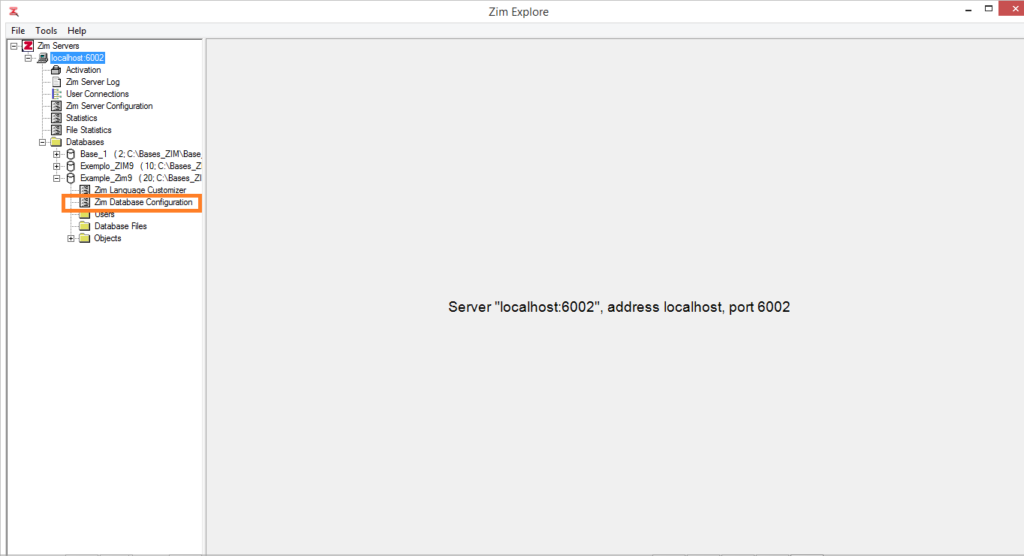
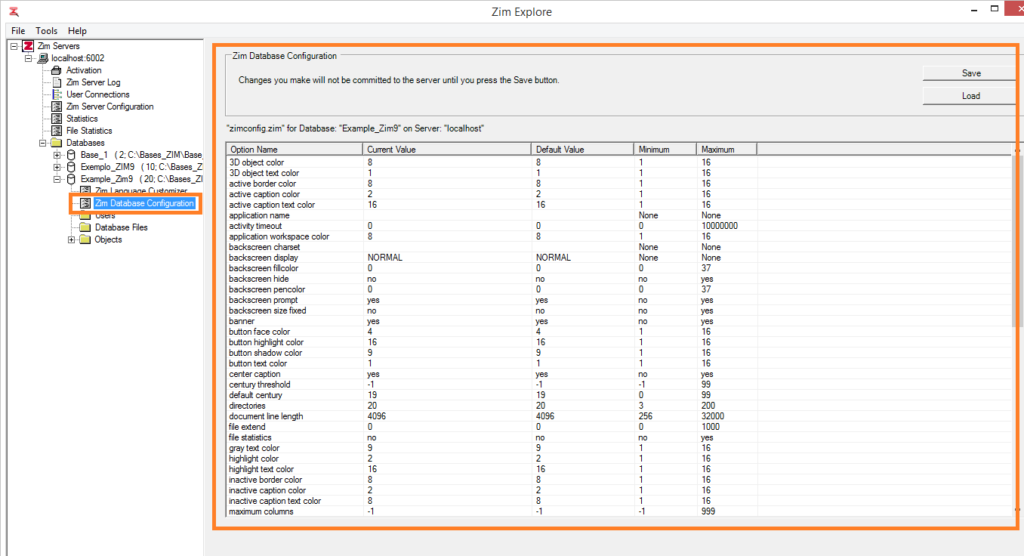
The column headers in the Zim Database Configuration grid are described in the table below:
| Column | Description |
|---|
| Option Name | The Zim database configuration option |
| Current Value | The value assigned in the configuration file |
| Default Value | The default value for this option if no other value is assigned |
| Minimum | The minimum allowed value for this option |
| Maximum | The maximum allowed value for this option |
.
The table below lists all the available Zim database configuration options. Click on any option to view more information about it.
Editing the Zim Database Configuration
To change the value of a configuration option, click on the cell in the Current Value column along the row corresponding to the selected configuration option

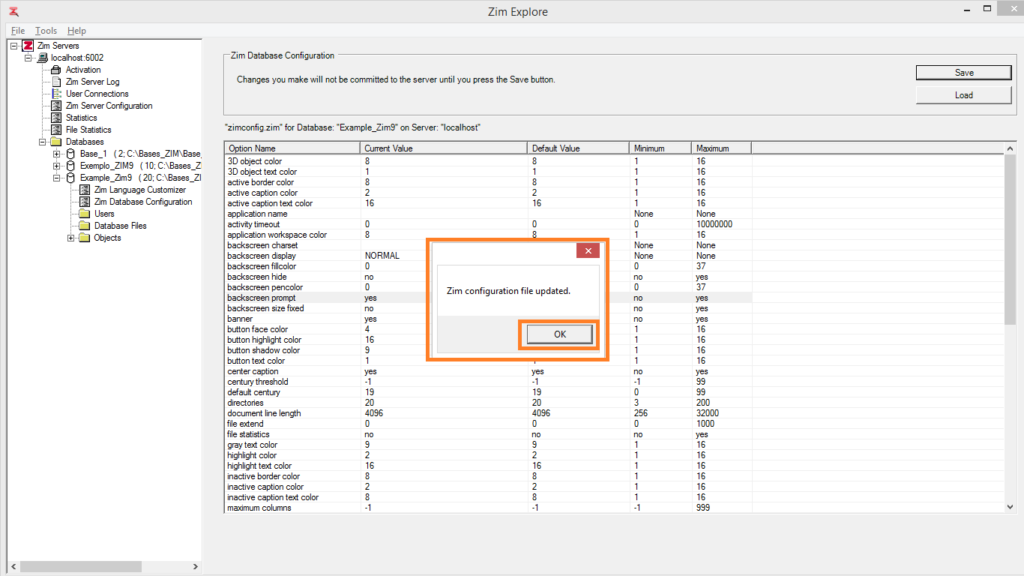
Type in or select the new value for the configuration option and click on Save to store the new configuration file
The Zim database configuration changes have been accepted and will take effect as soon as Zim Server restarts.
The name of an application directory (Directories); otherwise, the one application directory in which the associated object may exist.
Valid Values
An 18-character string, containing a valid object name
Remarks
In Directories:
DirName is the name assigned to the directory.
In other Object Dictionary entity sets:
In any entity set, the principal object’s DirName must match the DirName of its owner.
If DirName is left blank, the object may exist in any number of application directories.
In DDDescriptions, DirName is where the object being described may be found.
In DisplayForms, DirName is where the owner-display of the associated form may be found.
See Also
ConstName, DDObjectName, DDOwnerName, DisplayName, DocName, EntName, FieldName, FormName, MenuName, OwnerName, RelName, RoleName, SetName, UserName, VarName
A constant is a programming object. Wherever the constant name is used in an application program, the software uses the value assigned to that constant in the Constants entity set.
Establishing a Constant
Call up the Zim IDE, select CONSTANTS from the DataBases menu, and use the tools of the Zim IDE Development to define the desired constant.
Creation of Constants step by step:


Stores additional descriptive information about any type of object.
An Object [data] Dictionary description is a programming object. The descriptions in DDDescriptions are available for use by special development tools, either those potentially available from Zim or those created by the application developer.
Establishing a Description
Call up the Development Center with the DC command, select DDDESCRIPTIONS from the OBJECTS drop-down menu, and use the tools of the Development Center to define the desired description.
Fields of the Descriptions Entity Set
Attributes | Description |
DDObjectName | Name of the object being described |
DDOwnerName | Name of the object that “owns” the object being described |
DirName | Application directory location of the object being described |
DDObjectType | The type of object being described |
DDObjectDesc | The description |
ObjectKey | A unique identifier assigned by the Development Center |
The numeric identifier for the directory.
Valid Values
A value in the range 0 to 248 (DEFAULT = 0)
Remarks
Every directory accessed by an application must have a unique DirId.
If you choose a DirId of 0, the internal ID of the directory is set to match the number assigned to the corresponding operating system file (i.e., ZIMnnnn where nnnn is typically a number between 0100 and 9999). Within each application, the internal ID of all application directories accessed at the same time must be unique.
See Also
Foreign
“Foreign” status of a directory. Indicates whether an application directory is accessible from other Zim databases.
Valid Values
As shown in the table below:
Code | Meaning |
No | (DEFAULT) The directory exists in the database where it is defined |
Yes | The directory exists in another database and will be connected to the defining database with an ACCESS command |
Order in which to load data into form instances in a display. Indicates how data is to be loaded into forms that are repeated in a display.
Valid Values
A 1-character code, as shown in the table below:
Code | Meaning |
R | “Row major” order (left-to-right, top-to-bottom–default) |
C | “Column-major” order (top-to-bottom, left-to-right) |
Number and direction of the instances of a form in a display.
RA is the number of repeats left-to-right across the display; RD is the number of repeats top-to-bottom down the display. The total number of instances of a particular form is the product of RA and RD (RA*RD).
For example:
Figure
Valid Values
An integer (1 to 999)
If RA or RD is not specified, 1 is used.
Remarks
When a form is repeated in a display, each instance of the form is assigned a subscript. The subscripts always begin at 1. If LoadOrder is row-major, then subscripts are assigned from left to right and top to bottom; otherwise, they are assigned from top to bottom and left to right.
See Also
LoadOrder, ThisForm (Language Reference)
The horizontal position of the left edge of the object, expressed in twips.
Required: Either Col (characters) or WdgCol (twips) must be specified
Valid Values
A number (longint)
Remarks
In DisplayForms, indicates the horizontal position of the left edge of the first occurrence of the form in relation to the display.
In FormFields, indicates the horizontal position of the left edge of the form field in relation to its parent object (form field, form, menu).
In Menus, indicates the horizontal position of the left edge of the menu in relation to the window.
In Windows, indicates the horizontal position of the left edge of the window. For a pop-up window, this position is relative to the screen; for a clipped window, this position is relative to its parent window’s client area.
See Also
Col, WdgClass, WdgRow

 Portuguese
  English